

Learn why Twitter video quality varies and how to save the highest available public video version with TwitterView.

When people download a Twitter video, they usually care about the same thing: getting the sharpest public file available, not a fuzzy copy grabbed from the wrong variant. Twitter does not store every video as one fixed file. A public post can expose an auto HLS stream plus Low, Medium, and HD MP4 versions. The exact files depend on the original upload and how Twitter processed it.
TwitterView is built around that practical idea of quality. For supported public videos, it looks for the strongest public MP4 it can resolve and lets you save that version for free. It does not fake extra detail or hide HD behind a separate paywall.
For the wider public-media download workflow, see our Twitter media downloader guide. It explains how to choose between a single public tweet and a profile-level media search when you need more than one file.
Want to experience the feeling of batch downloading Twitter videos?
Twitter prepares videos for different screens, connections, and playback conditions. The auto stream is useful while watching because it can shift quality as the network changes. MP4 variants are better for downloads because they are direct files. On many public posts, those MP4 files line up with low, medium, and HD quality, though vertical clips, square videos, older uploads, and compressed originals can expose different dimensions.
"Highest available quality" means the best public file attached to that video at the time you request it. If the creator uploaded a small compressed clip, even the best file may look only okay. If the source was clean HD, the top MP4 should look much sharper. A downloader can pick the best available file; it cannot invent detail that was never uploaded.
If your starting point is a creator, brand, news account, or other public profile, open Twitter Profile Viewer first. Enter the public username or profile link, then review the posts and media in one place. That is usually easier than copying tweet URLs one after another, especially when the account has a lot of similar clips.
In the media view, filter for videos and select the ones you actually want to save. You can batch save the HD videos you need in one pass. That small review step helps avoid familiar mistakes: saving a thumbnail, choosing a GIF instead of a video, or downloading the wrong clip from a nearby post.
If you already have the exact post, use the Tweet Downloader. Paste the public tweet URL, preview the media, and download the video from that post. Profile Viewer is better for browsing an account's video library. Tweet Downloader is better for one known URL.
For supported public videos, TwitterView does not make you choose between a free low quality file and paid HD. It points the download to the best MP4 variant it can resolve. Public web limits still apply: protected accounts, deleted posts, unavailable media, and videos Twitter does not expose publicly cannot be treated like normal downloadable files.
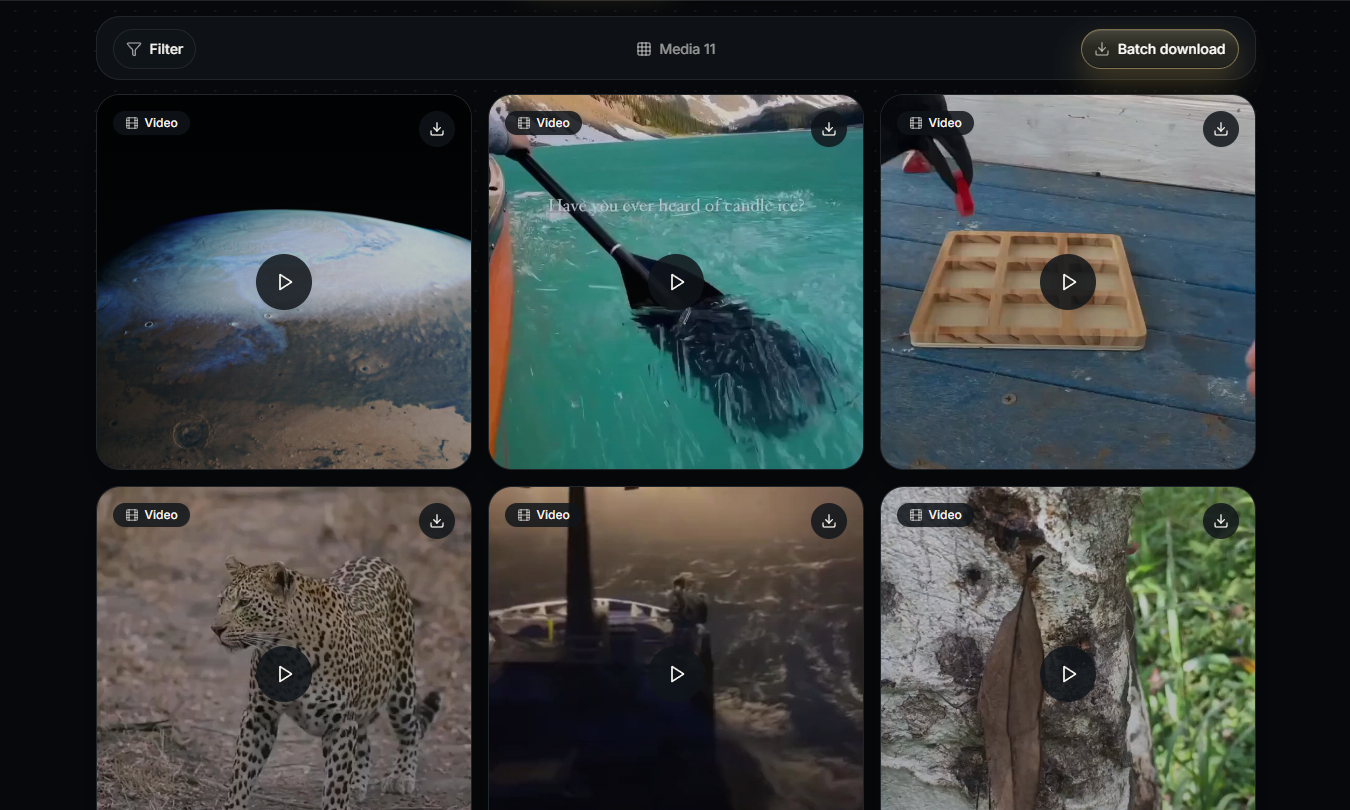
The workflow is simple: find the public source, review the media, and save the best available file. Profile Viewer helps when the source is an account. Tweet Downloader helps when the source is one post. For related public media workflows, the TwitterView blog has more guides on browsing public profiles, opening tweets, and saving supported media.
If you need several videos from the same account, our bulk Twitter video download guide walks through the profile-based workflow. On mobile, the iPhone single and batch download guide covers the practical saving options.
The best way to download Twitter videos is to start with the right public source and save the highest MP4 version that Twitter exposes for that media. Twitter commonly offers multiple video variants, but availability depends on the upload. TwitterView keeps the process direct: inspect the public profile or tweet, choose the right media, and download the highest available quality for supported public videos for free.
Need to download Twitter images in bulk? This guide shows how to batch save images from a public profile with filtering and ZIP download.

Need a Twitter video as an MP4? Learn why downloads use MP4 and how to save one clip or batch download videos from a public profile.
Need a Twitter video as an MP4? Learn why downloads use MP4 and how to save one clip or batch download videos from a public profile.



© 2026 TwitterView. All rights reserved.
