

Need to save a Twitter video on iPhone? Compare the main options, then follow TwitterView's single-video or batch-download workflow.

To download Twitter videos on iPhone, first decide whether you need one known tweet or several clips from the same public profile. The TwitterView homepage gives you a direct starting point for either path.
You do not need Twitter Premium to use TwitterView. Twitter's own download button is a different story: it is usually limited to Premium members, and creators can switch downloads off. That is why the option may appear on one post and be missing from the next.
It depends on where you download it. Twitter's built-in Download video option usually requires Premium, and the uploader must leave downloads enabled. TwitterView uses a public link instead, so a supported tweet or profile URL is enough.
Want to experience the feeling of batch downloading Twitter videos?
On iPhone, storage is the practical concern with a large batch. Check the estimated size before you start, then follow the warning shown by the page. The 200 MB and 300 MB thresholds are explained later in this guide.
The complete Twitter media downloader guide explains when to start from a profile and when to use a tweet URL.
There is no single best way to save every Twitter video on an iPhone. The easiest option depends on whether Twitter shows its own download control, whether a screen recording is good enough, and whether you need one video or a whole group from the same account.
| Method | Twitter Premium needed? | Best for | Main limitation |
|---|---|---|---|
| Twitter's in-app option | Generally yes | A post that already shows a download control | The uploader must allow downloads, and the control is not available on every video |
| iPhone screen recording | No | A short fallback clip | Re-records the screen and may need trimming |
| Third party downloader sites | Usually no | Saving one public video from a copied tweet URL | Quality varies, and some sites use ads, fake buttons, or redirects |
| TwitterView | No Twitter Premium | Single tweet videos or batches from a public profile | Public media only; some batch options and mobile size limits apply |
The table is the quick comparison. On an iPhone, the methods feel quite different once you use them. Some are fast but unpredictable; others take another tap and give you a cleaner file.
When Download video appears in Twitter's menu, use it. You stay inside the app and get the file without opening another page. The catch is availability: the viewer may need Premium, the uploader can disable downloads, and many posts never show the command. If it is missing, move on to another method.
Screen recording works in a pinch. Start it from Control Center before the video plays, then trim the extra seconds in Photos. This is fine for a short reference clip. It is a poor fit when you want the original file or the best resolution, and notifications can slip into the recording.
Third party download sites usually ask for a public tweet URL, then show a preview and one or more video files. Quality is all over the place. A decent site keeps the real action beside the preview. A bad one opens tabs, uses lookalike buttons, or asks for a Twitter login it should not need. Leave any page that requests account credentials.
TwitterView starts with the source. Paste one public tweet into Tweet Downloader when you know the post. If several clips come from the same account, open Profile Viewer and filter the media list first. This avoids copying a string of tweet links on a small screen, and you can check similar thumbnails before saving anything.
Open the tweet, tap Share, and copy its direct link. Use the tweet URL rather than the account page so the lookup resolves the correct post.
Open the Tweet Downloader in Safari, paste the URL, and run the lookup. Review the supported public media shown in the result.
Confirm that the preview matches the clip, then tap the video tile. TwitterView opens the public media URL in a new Safari tab. If the video starts playing, use Safari's Share menu and choose Save to Files. You can then find the MP4 in the location you selected in Files.
Quality depends on the original upload and the public variants Twitter exposes. The highest available Twitter video quality guide explains why saved videos can have different resolutions.
Open Twitter Profile Viewer, enter the public username or profile URL, and load the account. Use this route when several videos come from the same source.
Switch to the Media tab and choose the video filter. Review the clips before selecting them so images, GIFs, and unwanted posts stay out of the batch.
Enter batch selection mode, choose the videos, and tap Download. TwitterView collects them into a ZIP, which Safari saves for later access in Files.
The guide to batch downloading Twitter videos from public profiles covers profile lookup, filtering, selection, and ZIP organization in more depth.
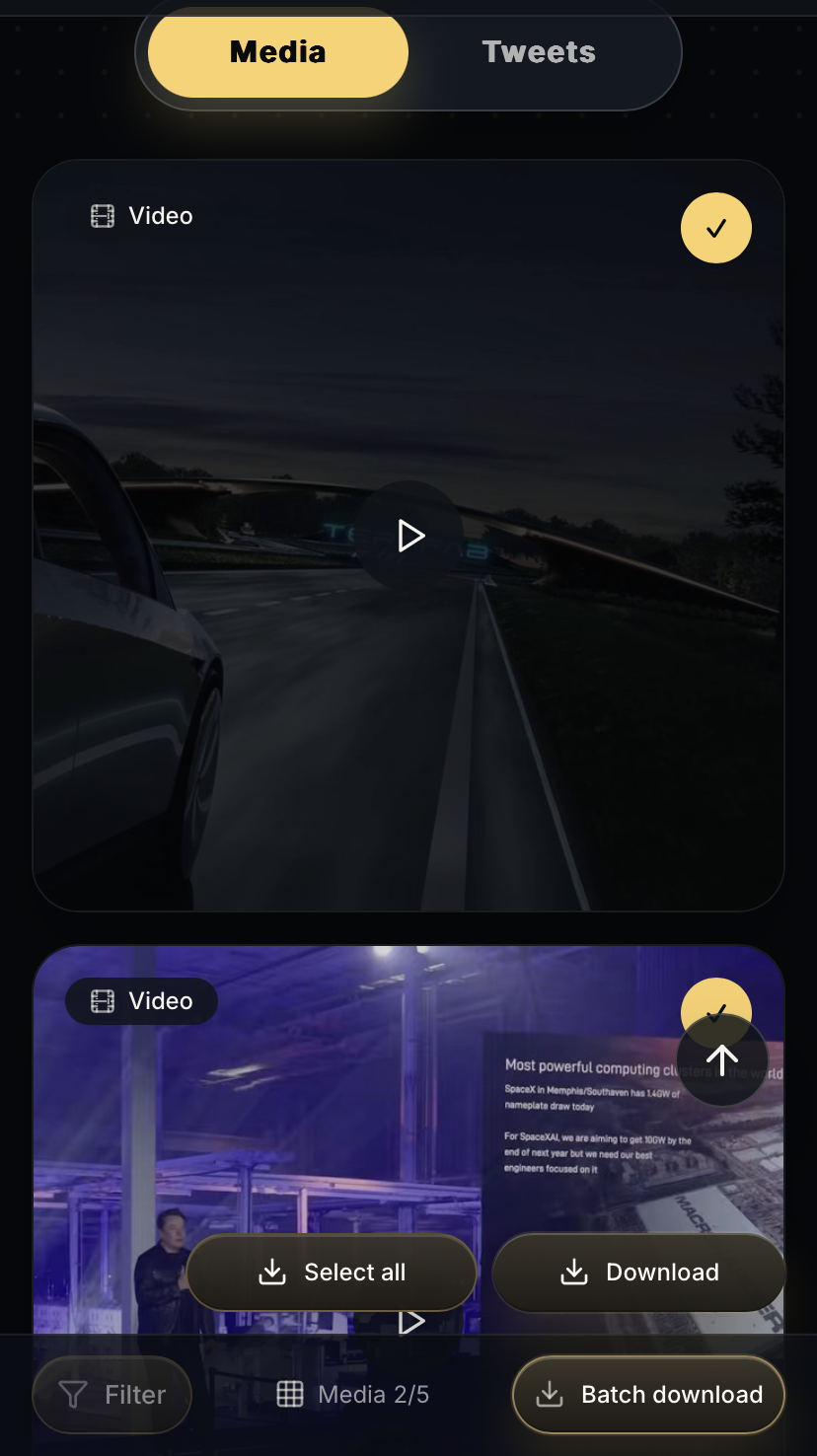
Large ZIP files can consume a noticeable share of iPhone storage. TwitterView therefore checks the selected batch size before a mobile download starts and changes the next action at two thresholds.
| Selected batch size | What happens on iPhone | Recommended action |
|---|---|---|
| 200 MB or less | The normal ZIP download can continue | Download on iPhone if you have enough free space |
| More than 200 MB, up to 300 MB | A warning asks whether you want to continue | Cancel and use desktop when possible; continue only if storage is comfortable |
| More than 300 MB | Mobile download is blocked | Open the same public profile on desktop and run the batch there |
The 200 MB warning is advisory: cancel it or confirm that you want the ZIP. The 300 MB limit is a hard mobile stop, so that batch must move to desktop.
Desktop is also easier for reviewing many selected clips and moving or extracting a large ZIP.
You do not need Twitter Premium to save supported public videos with TwitterView. For one known tweet, the Tweet Downloader route is usually enough. When the videos are spread across one public account, Profile Viewer saves you from copying links one by one.
Storage is the main iPhone limit. A batch above 200 MB asks for confirmation, and anything above 300 MB has to move to desktop. That is better than watching a large ZIP crowd the phone or stall in Safari.
Need to download Twitter images in bulk? This guide shows how to batch save images from a public profile with filtering and ZIP download.

Need a Twitter video as an MP4? Learn why downloads use MP4 and how to save one clip or batch download videos from a public profile.
Need a Twitter video as an MP4? Learn why downloads use MP4 and how to save one clip or batch download videos from a public profile.



© 2026 TwitterView. All rights reserved.
