

Found a public profile full of videos you like? This guide shows how to filter, select, and batch save them with TwitterView.

You know the moment: you open a public Twitter/X profile and realize the account has posted a whole run of videos you want to keep. Maybe it is creator clips, product demos, sports moments, design references, or research material. One video is easy. Ten videos from the same profile starts to feel like busywork.
Bulk downloading helps because it turns that scattered saving process into one tidy pass. Instead of opening tweet after tweet and hoping you do not lose your place, you can review the profile, filter for videos, pick the clips you want, and save them together.
If you want the full set of options for saving public Twitter media, our Twitter media downloader guide is a useful place to start. It explains when to use profile browsing, single-tweet parsing, and batch downloads.
Want to experience the feeling of batch downloading Twitter videos?
Speed is only part of it. The bigger win is staying organized. When you save clips one by one, similar thumbnails blur together. You might miss a good clip, download the same kind of video twice, or end up with files that no longer tell you where they came from.
A profile based workflow gives you a little breathing room before the download starts. You can look at the account as a collection, narrow it down to videos, and keep the final files in a cleaner bundle. If you are building a reference folder or saving public media for later review, that matters.
Open Twitter Profile Viewer and enter the public username or profile link. Start here because your goal is the account's video library, not one isolated tweet. TwitterView loads the public profile, recent posts, and media into one workspace so you can see what is available before choosing files.
Once the profile result loads, switch to the media view and filter for videos. This cuts out most of the noise. You are no longer scanning every image and GIF while trying to spot the clips you came for. On a busy account, the video filter saves a surprising amount of patience.
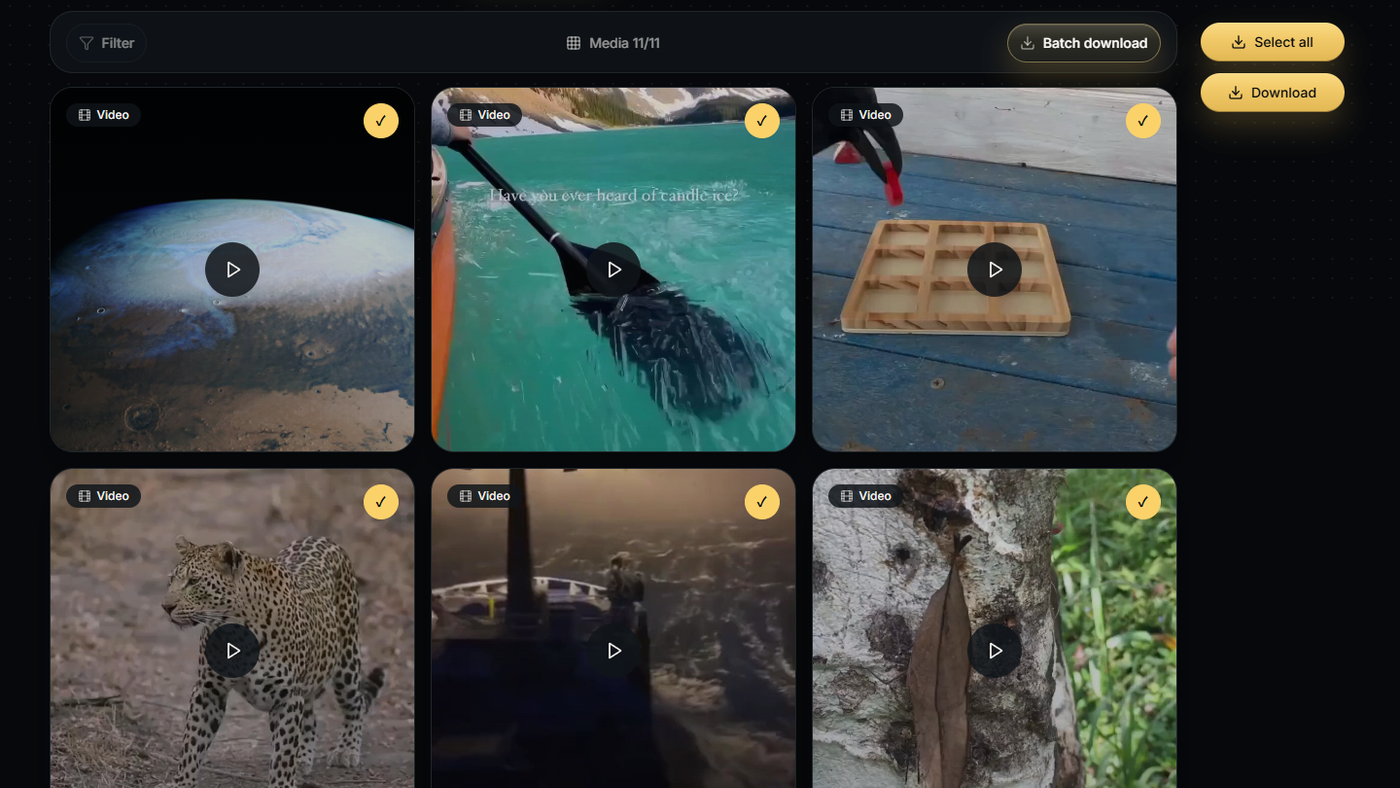
Now select the videos you actually want. This is the step that keeps bulk downloading from turning into a messy "save everything" habit. You can keep the favorites, skip duplicates, and leave behind clips that only looked useful for a second.
When several videos are worth keeping, select them together and run the batch download once. It is much less annoying than repeating the same download action again and again.
Use Batch download to save the selected media as a ZIP file. Inside the ZIP, files are numbered in order and keep the right extension, such as .mp4 for videos.
That format is plain, which is exactly why it works. You can keep each creator or topic in its own folder, move the ZIP to cloud storage, or extract the MP4 files later when you are ready to edit, sort, or review them.
If you only need one specific post, use the Tweet Downloader instead. Paste the public tweet URL, preview the media, and save that one video. For bulk collection from a public user, the profile workflow is the better fit because filtering, selection, and batch saving all happen in one place.
Downloading several files is only part of the job; quality still matters. See our highest-quality Twitter video download guide, or use the iPhone single and batch download guide if you are saving the files on mobile.
TwitterView works with supported public media. It cannot download protected accounts, deleted posts, private content, or videos that X does not expose publicly. Bigger batches can also take longer, especially on mobile, so desktop is usually the calmer choice for large saves.
If you want to download Twitter videos from one public profile, do not start by chasing individual tweet links. Resolve the public user first, filter the media view to videos, select the clips you like, and batch download them into a ZIP. The whole job becomes easier to check, easier to save, and easier to store.
Need to download Twitter images in bulk? This guide shows how to batch save images from a public profile with filtering and ZIP download.

Need a Twitter video as an MP4? Learn why downloads use MP4 and how to save one clip or batch download videos from a public profile.
Need a Twitter video as an MP4? Learn why downloads use MP4 and how to save one clip or batch download videos from a public profile.



© 2026 TwitterView. All rights reserved.
