

Learn how to reveal sensitive Twitter media, save public videos or images, and batch download eligible files from public profiles.

A sensitive-media warning can make a public Twitter/X video look unavailable at first glance. Usually, it means X is waiting for your account setting before it shows the file. This guide covers how to enable that setting, save public media, and collect eligible videos in batches with TwitterView.
To download sensitive videos from Twitter, first make sure the post is public and your X settings let you view it. A warning label usually controls what you see, not who can access the post. Once the media appears, you can save one tweet or work through a public profile.
Turning on sensitive-media viewing only changes what your own X account displays. It cannot open protected posts, restore deleted media, or make private content public.
If your goal is to save public sensitive media rather than only view it, our Twitter media downloader guide explains the main ways to handle public videos, images, and GIFs. It also helps you choose between a single-tweet workflow and profile-level media browsing.
Want to experience the feeling of batch downloading Twitter videos?
Twitter/X may place a warning in front of media that includes adult material, graphic scenes, or other content people may prefer not to see without notice. The warning can appear on photos, GIFs, and videos.
The label controls display, not access. A public post can carry a warning, but a protected or removed post is still unavailable. Check the post and its audience rules before you save anything.
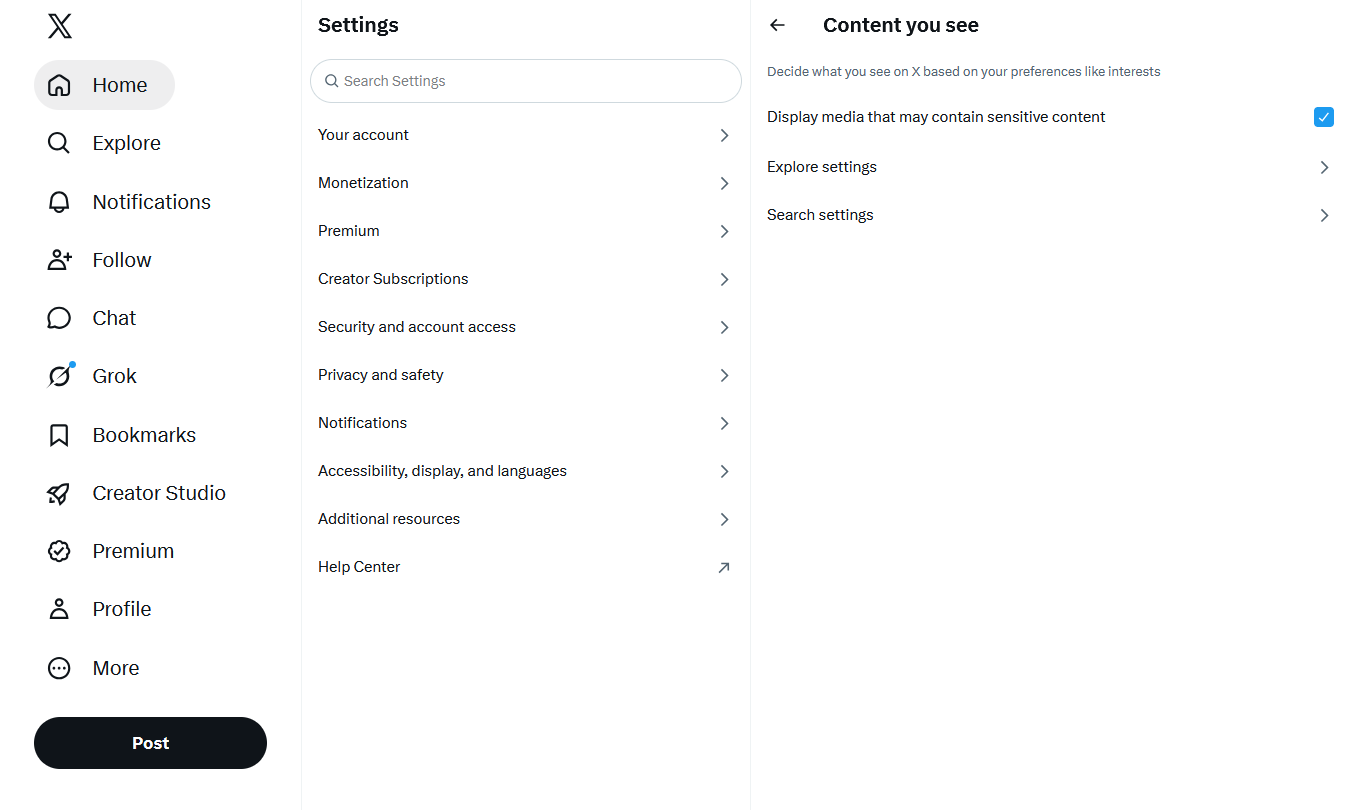
On the X website, open Settings and privacy, then Privacy and safety. Under Content you see, switch on "Display media that may contain sensitive content." If you are searching for posts, turn off "Hide sensitive content" in Search settings when that option appears. Then refresh the post.
In the X app, tap your profile picture and open Settings and privacy > Privacy and safety > Content you see. Enable "Display media that may contain sensitive content." The wording can vary a little by app version. If the post still will not open, check that it is public and viewable from your account.
This setting does not remove age gates, regional restrictions, account protections, or moderation decisions. If X keeps the post unavailable, do not try to work around it.
Once the public post is visible, copy its direct tweet URL. That link lets a downloader find the exact media item. For one video, image, or GIF, open TwitterView Tweet Downloader, paste the URL, and check the result before saving it. The preview matters when a post includes more than one image or clip.
Only save media you are allowed to reuse. A public post does not automatically give you permission to republish, edit, or distribute the file. Do not use a downloader for protected, deleted, or unavailable content.
If you are starting from a profile, you may need help choosing between a single-post download and a collection workflow. The TwitterView can help you choose.
A direct tweet URL works best when you know the exact post. It gets slow when a public account has several videos to review. In that case, open Twitter Profile Viewer and enter the public username or profile link. TwitterView loads the available public posts and media into one place.
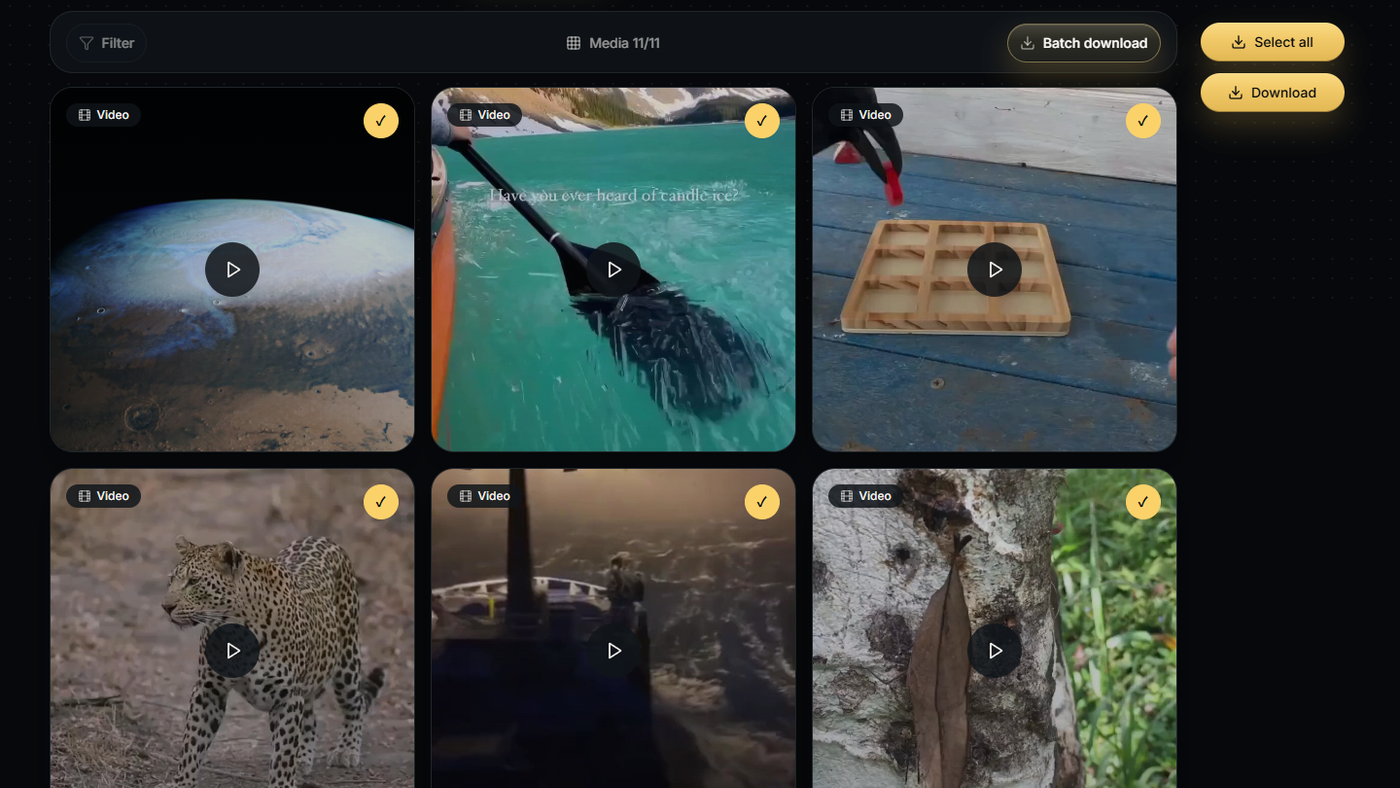
Switch to the media view, filter for videos, and choose the files you want. You can review images and GIFs separately. Then use Batch download to save the selection as a ZIP instead of repeating the same action for every post.
TwitterView only handles supported public media that it can parse. It cannot expose protected accounts or content X has removed or left unavailable. For a fuller walkthrough of the profile workflow, see how to download Twitter videos in bulk from public profiles.
You can save supported public media after you can view the post and the downloader can parse its public URL. A warning label does not make the media private. Respect the creator's rights and the platform rules.
The post may be protected, deleted, region-limited, age-restricted, or otherwise unavailable through X. A public downloader cannot recover media that the platform does not make public.
Use Tweet Downloader for one public post. Use Profile Viewer to browse a public account, filter its media, and batch download selected files. For a quality-focused single-video workflow, read how to save the highest available Twitter video quality.
To download sensitive videos from Twitter, enable sensitive-media viewing and confirm that the post is public. Use the direct post link for one download, or use TwitterView Profile Viewer to filter a public account's media and batch download the videos you choose.
Need to download Twitter images in bulk? This guide shows how to batch save images from a public profile with filtering and ZIP download.

Need a Twitter video as an MP4? Learn why downloads use MP4 and how to save one clip or batch download videos from a public profile.
Need a Twitter video as an MP4? Learn why downloads use MP4 and how to save one clip or batch download videos from a public profile.



© 2026 TwitterView. All rights reserved.
