

Need a Twitter GIF download that works on desktop and mobile? Learn why GIFs save as MP4 and which TwitterView workflow fits your use case.
Downloading a Twitter GIF can feel oddly anticlimactic: you click save and get an MP4 instead of a .gif. That is normal. Twitter generally publishes GIF-style posts as short, looping videos. Once you know that, the file extension stops being a surprise and the process gets a lot simpler.
The usual points of confusion are straightforward. Twitter GIFs and regular videos are delivered differently, the post viewer does not hand you a GIF file, and a downloader keeps the clip as MP4. The TwitterView workflow also changes a little between a computer and a phone because each browser handles saved files differently.
On the timeline, the two can look almost the same. Both play inside the post, and a GIF-style clip may loop before you even notice it is a video. The difference sits underneath: a traditional GIF is a sequence of image frames, while Twitter normally stores its GIF-style posts as short, silent video files.
Want to experience the feeling of batch downloading Twitter videos?
| Aspect | Twitter GIF | Twitter video |
|---|---|---|
| Underlying file | Usually short MP4 | MP4 video |
| Audio | Normally silent | May include audio |
| Playback | Loops automatically | May play once or loop |
| Max Length | 15 seconds | Up to 2 min 20 sec (or 8 min for premium) |
That is why a search for download gif Twitter often ends with an MP4. The extension tells you what Twitter served; it does not mean the animation was lost.
Twitter's post viewer is built to play and share media. Its controls usually cover play, mute, share, and open, but they do not expose a separate GIF file. A GIF-style post follows the same delivery path as video, so there may be several sizes or quality variants behind the player.
Copying the tweet URL only gives you the post page. It does not give you the media file. That is why people search for a gif downloader Twitter or gif Twitter downloader: they want something that can resolve a public rendition and hand it back as a file.
MP4 is a sensible format to keep. It is usually much smaller than an equivalent frame-by-frame GIF, works on current browsers and phones, and is easier to drop into an editor or cloud folder. The loop stays intact; only the container changes.
If your next tool specifically needs a .gif, convert the MP4 after you save it. That is a separate publishing choice. For storage and everyday sharing, the MP4 is usually the less troublesome copy.
The Twitter media downloader guide explains the workflow in more detail. TwitterView gives you two routes: collect media from a public profile, or pull one file from one post. Choose the route that matches where your media starts.
1. Open the Twitter Profile Viewer and enter a public username or profile URL.
2. Wait for the profile to load, open the media list, and filter it to GIFs or other short looping clips.
3. Select the clips, start the download, and let the desktop browser manage the files. A computer is simply easier when you want to compare thumbnails, watch several downloads, or sort a larger batch into folders.
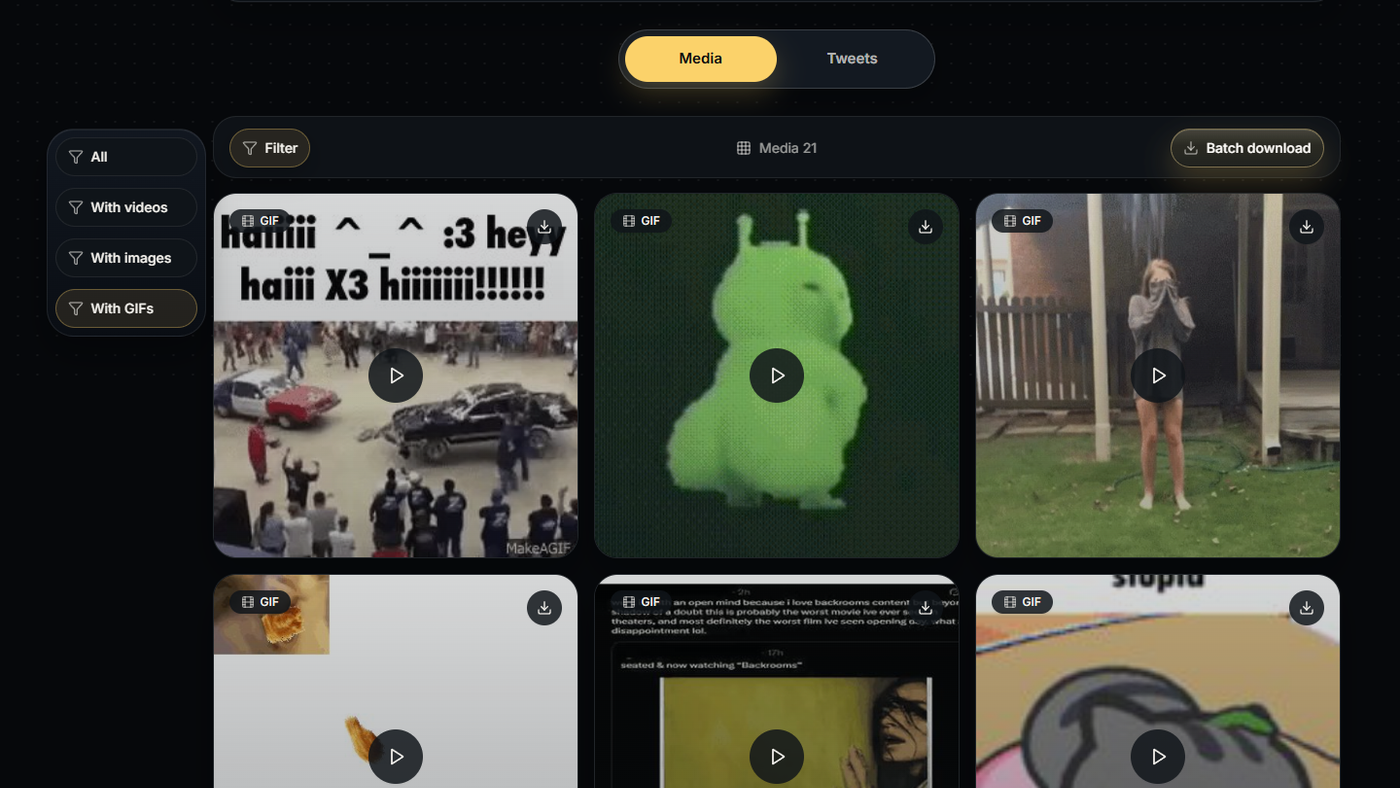
1. Open TwitterView in your phone's browser, use the profile route, and paste the public username or profile URL. Filter the results to GIFs once the profile loads.
2. Tap a clip and download the MP4. Android usually puts it in Downloads. On an iPhone or iPad, Safari may show the download icon or ask you to choose a location in Files; the exact prompt depends on your settings.
3. If you only need one GIF from one post, the Tweet Downloader is quicker. Paste the public tweet URL, check the preview, and save the MP4.
• The post must be public. Protected accounts, private posts, deleted media, and dead URLs are outside a public workflow.
• Twitter may expose more than one quality variant. The downloader can only save the versions available for that post.
• On a phone, a large download can stop if the screen locks or the tab closes. Keep the browser open, or use a desktop for a bigger batch.
In 2026, a Twitter GIF download is usually a video save with a GIF-like presentation. Most GIF-style posts are short MP4s, so an MP4 result is expected and often the more useful file.
Use Profile Viewer when you are collecting clips from a public account, and Tweet Downloader when you only need one post.
For the profile route, see Twitter Gif Download guide.
For larger collections, see downloading Twitter videos in bulk from public profiles.
Need to download Twitter images in bulk? This guide shows how to batch save images from a public profile with filtering and ZIP download.

Need a Twitter video as an MP4? Learn why downloads use MP4 and how to save one clip or batch download videos from a public profile.
Need a Twitter video as an MP4? Learn why downloads use MP4 and how to save one clip or batch download videos from a public profile.



© 2026 TwitterView. All rights reserved.
