

Compare a web-based Twitter Viewer with download plugins, especially account safety, permissions, device support, and public media workflows.
People search for a twitter viewer when Twitter's own interface feels like too much work for a simple job. They may want to check a public profile, look through recent posts, save a video, collect images, or pull a useful GIF into a research folder. None of that should require turning the browser into a small extension project.
That is where the web-versus-plugin choice starts to matter. A plugin sounds handy until the user has to install it, grant permissions, keep it updated, and use it inside a Twitter tab. A web viewer is less invasive. It asks for a public username, profile link, or tweet URL, then handles the viewing path from there.
For a broader no-login workflow, see our . It explains how to browse public profiles and tweets without adding another browser plugin to your setup.
Want to experience the feeling of batch downloading Twitter videos?
Account safety is the part users tend to feel first, even if they do not describe it that way. A web-based Twitter Viewer does not need the user's own Twitter account to parse public content. The user enters a public target, and the tool handles that public lookup separately from the user's personal login.
A plugin sits much closer to the user's account. It often runs in the same browser where Twitter is already logged in. If that plugin refreshes pages too often, scrapes automatically, or behaves in a way Twitter does not like, the user's own account may be the one exposed to rate limits, warnings, or other risk. That is a lot to accept for something as ordinary as checking public media.
A web viewer starts where the user already is: in a browser. There is no extension store, no compatibility check, no install prompt, and no need to remember which browser has the right plugin.
Plugins make the user do setup before they get the result. Install it. Enable it. Update it. Maybe configure it. Then do it again if they switch from Chrome to Edge or use another computer. For a quick Twitter viewing or download task, that feels heavier than it needs to be.
A web viewer has a clearer boundary. The user provides a public Twitter input and gets public results back. Normal use does not require permission to read tabs, change pages, or watch what happens inside the browser.
Plugins often need deeper browser access. They may ask to read page content, access Twitter pages, or inject scripts. Those permissions can be reasonable from a technical point of view, but users do not always read them that way. Many will wonder what else the plugin can see.
A web-based Twitter Viewer works on phones, tablets, laptops, and desktops. If the user can open a normal browser, the workflow is available. That matters for people who copy a Twitter link on mobile and want an answer without waiting until they are back at a desktop computer.
Plugins are much narrower. Most work best on desktop browsers. Mobile extension support is limited, inconsistent, or missing entirely. Users who move between devices end up with a patchy experience.
A web viewer does not require the user to begin on Twitter. They can start from the homepage, paste a username or tweet URL, and review public content from there. That is useful for profile checks, media collection, research, single-tweet downloads, and casual browsing.
A plugin depends more on the current page. The user usually has to open Twitter first, reach the right profile or tweet, and then use the plugin inside that context. Many plugin features also work better when the user is logged in, which brings the account-safety problem back into the room.
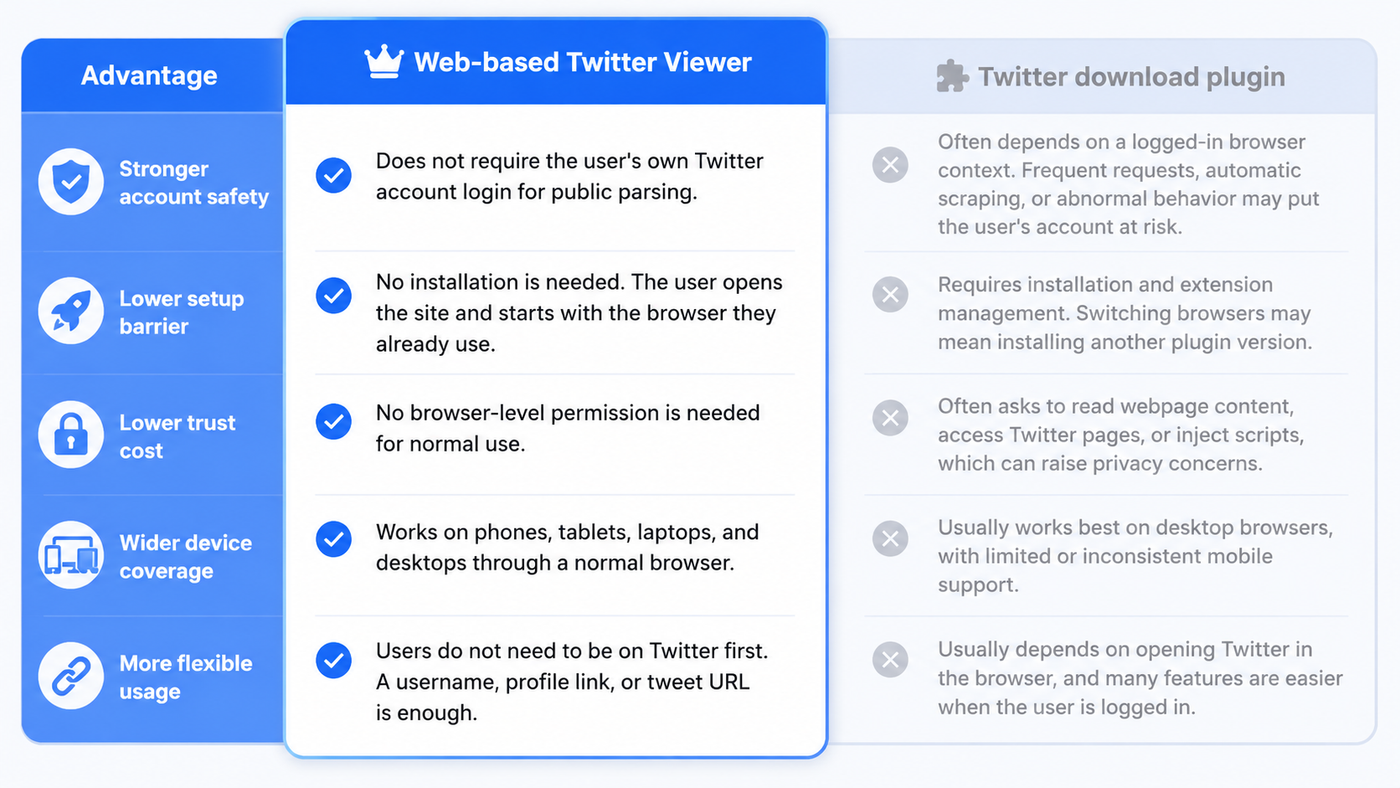
In short, a web-based Twitter Viewer is safer for account separation, easier to start, less permission-heavy, more device-friendly, and more flexible than a Twitter download plugin.
TwitterView is useful because it follows the web viewer pattern described above. The Twitter Viewer gives users a direct starting point for public Twitter viewing without asking them to install a plugin or lean on their own account session.
For profile work, the Twitter Profile Viewer path helps users parse a public profile, review posts and media, and filter videos, images, and GIFs. For one-off tweet tasks, the Tweet Downloader path focuses on a single public tweet URL and its available media.

That is the point of the product: keep the workflow simple, keep the user's account out of the risky part, and make public Twitter content easier to review from any device.
If you are currently locked out of an account, our guide to viewing Twitter after suspension shows the practical no-login workflow. For everyday public browsing, How to View Twitter Without an Account in 2026 covers the simpler starting point.
You do not need to connect every public browsing task to your Twitter identity. This guide explains the privacy case for viewing Twitter without an account.

Account suspended? Learn how to browse public Twitter media without login and save tweets, images, and videos more smoothly.
Account suspended? Learn how to browse public Twitter media without login and save tweets, images, and videos more smoothly.



© 2026 TwitterView. All rights reserved.
