

Need to collect a large public timeline? This guide shows how to review tweets in TwitterView and export a cleaner CSV or JSON dataset.
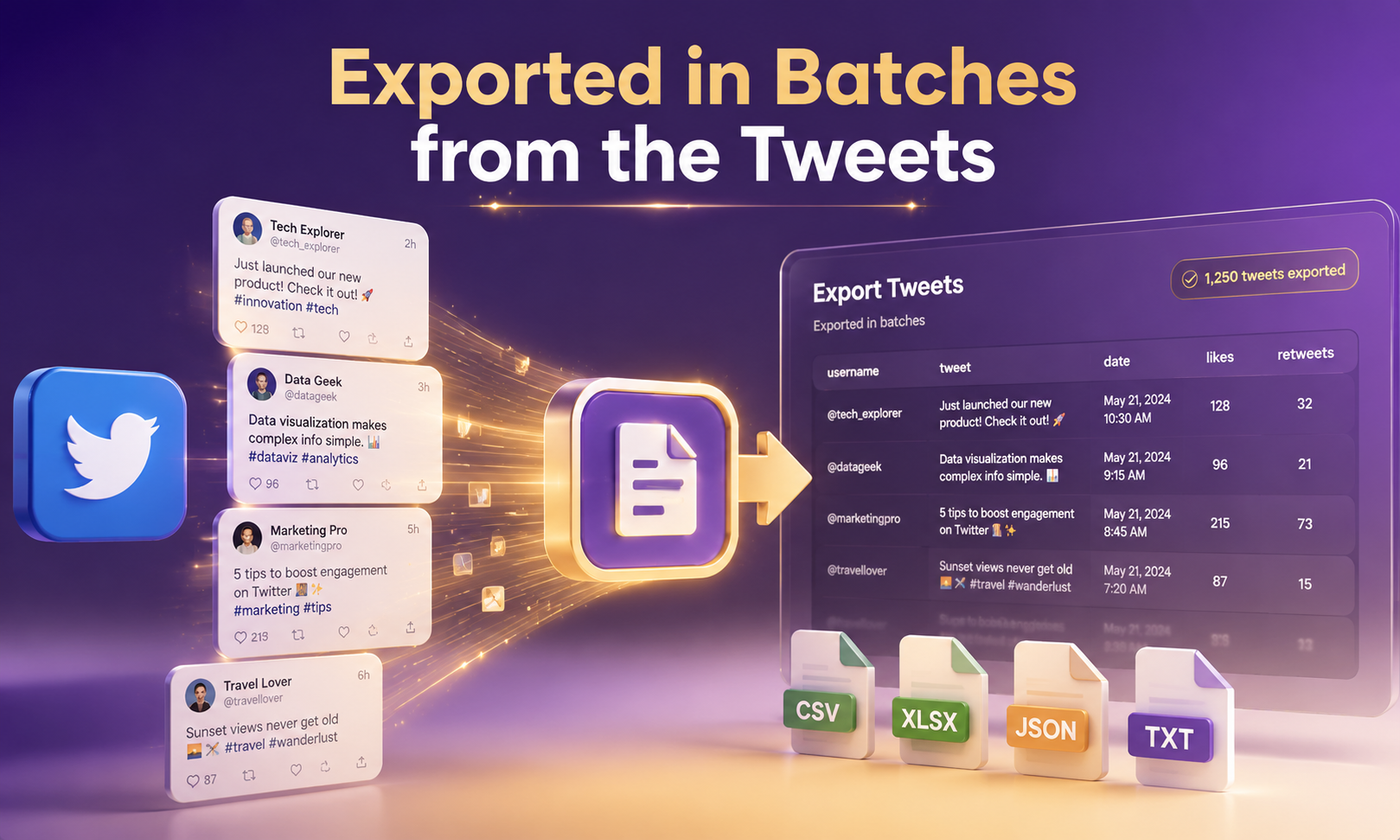
If you need a large set of tweets from one public Twitter account, the difficult part is rarely finding the posts. It is keeping track of what you have collected. Researchers follow topics over time, journalists check past statements, and content teams study a creator's publishing habits. Copying links one at a time gets tedious fast, and it is easy to lose track of where a post came from. For a long timeline, batch export is usually the more workable option.
TwitterView is built for that kind of profile-first research. Enter a public username or profile URL, look through the tweets and media that come back, then export the tweet results as structured data. The useful part is the order: check that you have the right account and the right slice of posts before you download anything.
If you want to review a public timeline before exporting it, our Twitter Tweet Viewer guide explains how TwitterView organizes public posts and media. That makes it easier to decide what belongs in your CSV or JSON export.
Want to experience the feeling of batch downloading Twitter videos?
A timeline becomes much more useful once you can take it outside the platform. CSV is handy for a spreadsheet or a quick report. JSON makes more sense when you need nested fields for a script, database import, or another repeatable process. In either format, a quick visual check first helps you avoid exporting a lookalike account or a partial result without realizing it.
Seeing the posts together also gives you more context. You can compare the account, post order, text, timestamps, engagement numbers, and available media in one place. That makes it easier to decide what belongs in your sample before you start analyzing it.
Open the Twitter Profile Viewer and enter a public username, an @handle, or a public profile URL. Use this route when you need to work with an account's timeline rather than one known tweet.
Run the lookup, then check the profile summary and the public posts that TwitterView returns. Look at the account name, avatar, bio, and the first group of posts. If the account is not your research target, fix the search before you export a timeline you do not need.
Open the Tweets tab to read the parsed public posts in reverse chronological order. You can check the text, publication time, replies, reposts, likes, views, and any visible media. Use Load More if you need a larger set, but decide how many posts your project actually needs before you keep going.
Open the batch export control in the Tweets tab and choose CSV or JSON. CSV is usually the easier option for spreadsheet work. JSON is better when you plan to process the results in code. TwitterView creates the file from the parsed result, so you do not need to copy tweet IDs or timestamps into a separate sheet.
If you also need videos, images, or GIFs, switch to the Media tab. Filter the result, select the files you want, and use batch download for the media itself. Keeping media collection separate from the tweet export makes both jobs easier to check later.

Batch export works from a profile result because it covers a group of public tweets. If you already have one specific post and only need its image, video, or GIF, use the Tweet Downloader instead. Paste the public tweet URL, check the media, and save that one result. Profile browsing is for building a dataset; tweet lookup is for a post you already know.
The main advantage of TwitterView is not simply having an export button. It is the sequence around that button: parse the public user, browse the result, filter the media when needed, and export the tweet data in a format that matches the next step of your work. That is a better fit for researchers, journalists, analysts, and content teams who need a repeatable way to inspect a large public timeline.
For more practical guides to public Twitter browsing and media review, visit the TwitterView blog. Once you have the export, you may also want to review the account's media separately. Our guide to downloading Twitter videos in bulk from public profiles covers that workflow, while How to View Twitter Without an Account in 2026 is useful when you only need to browse public posts before deciding what to export.
Learn how to collect public tweets, choose CSV or JSON, and prepare reliable data for market research, trend analysis, and AI projects.

Need to download Twitter images in bulk? This guide shows how to batch save images from a public profile with filtering and ZIP download.
Need to download Twitter images in bulk? This guide shows how to batch save images from a public profile with filtering and ZIP download.



© 2026 TwitterView. All rights reserved.
